
Dear Customer,
Thanks for purchasing the Bitdefender license.
Please follow the below 3 steps to activate your code. This process will take around 5-10 minutes.
Step 1: Register Bitdefender Central account using the below link.
(Skip to Step 2 if you already have a Bitdefender Central account)
For both new and renewal customers, after creating account, skip activation and proceed to the next step.
WARNING: You MUST proceed with Step 2 and activate code with India VPN on, or else you will encounter a region-code error.
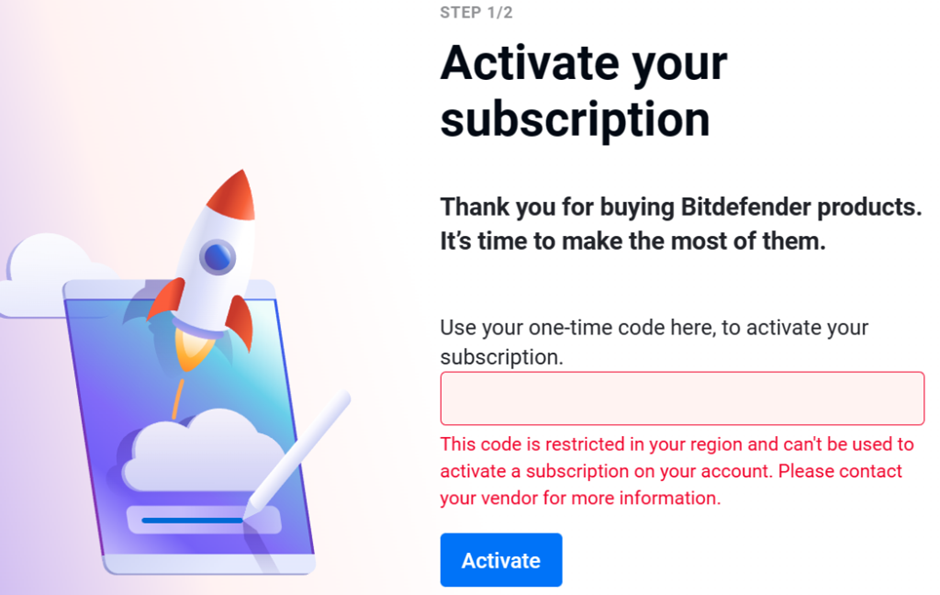
Step 2: Add Urban VPN Browser Extension into your web browser via the below link.
(You will need a PC to complete this step. Skip to Step 3 if you already have a VPN that can connect to India)
Google Chrome – Microsoft Edge – Opera : Urban VPN Proxy
(Download Google Chrome at this link: Google Chrome Web Browser)
To open up the extension, click the puzzle icon at the top right of Chrome next to the address bar. Click on the “Urban VPN” extension.
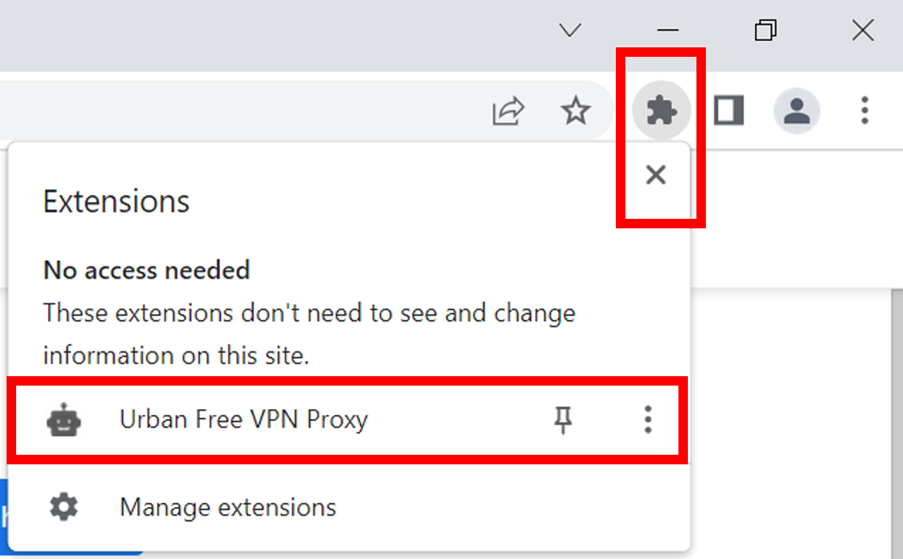
Next, select “I agree” to the terms and conditions. Choose the “India” server, and you should automatically be connected.
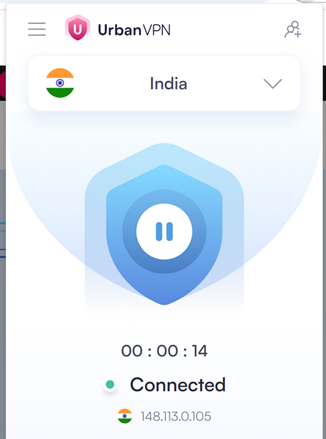
Move on to the next step with the VPN still connected.
Step 3: Open Bitdefender Central to enter the activation code provided.
Click on “My Subscriptions” on the left menu bar, and then click on +Activate with code next to the “My Services” header.

Enter the activation code to activate your new subscription.
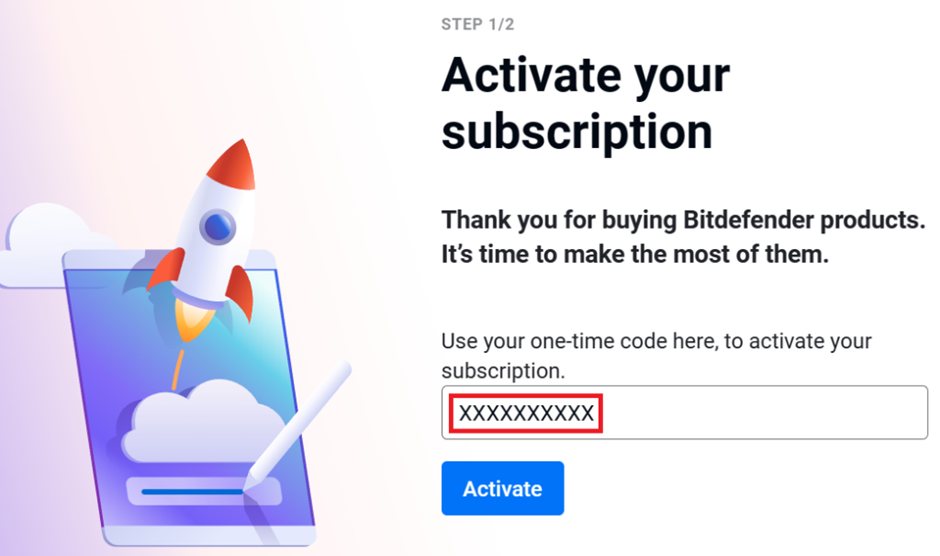
With the VPN turned-on, the activation code will be valid. You can choose “Add a new subscription” or “Extend your subscription” (extension only valid for same subscription type).
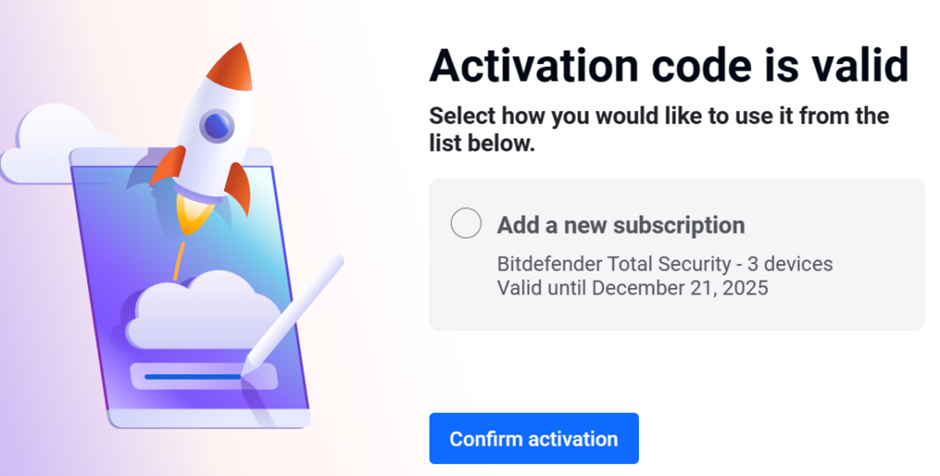
After successful activation, you no longer need the VPN. Disconnect and remove the VPN extension as it is only needed for ONE-TIME product activation. Run your antivirus software as per usual. 🙂
For general instructions on how to activate Bitdefender across multiple devices, please refer to the consumer guide below:
Install Bitdefender on another device: reinstall, transfer, protect extra devices